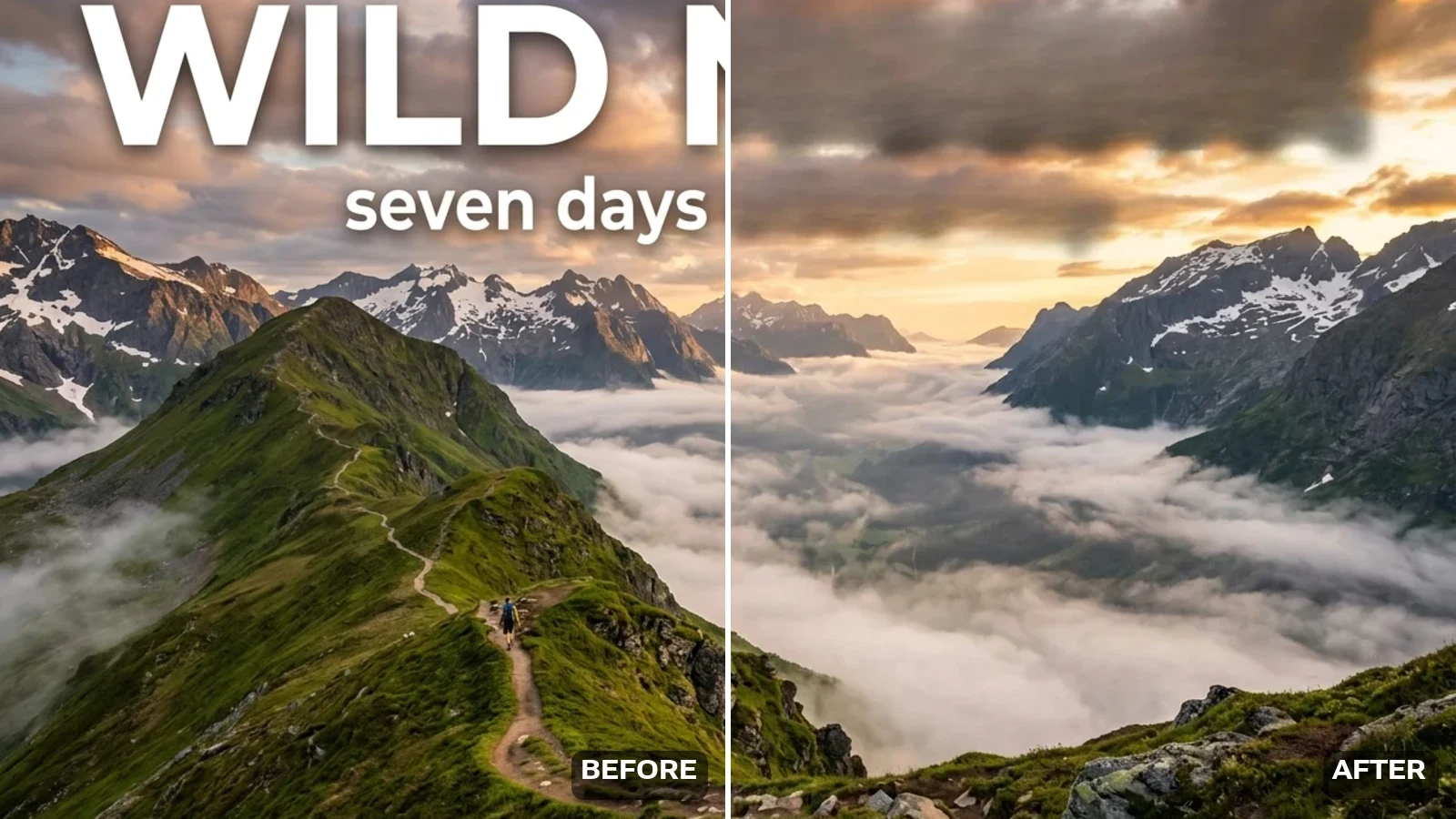
Marketing copy over a landscape
A travel shot carrying a poster-sized headline, a strapline and a site watermark. All three are gone on the right, and the ridge, cloud and trail behind them are rebuilt rather than blurred.
Upload the picture and the model finds the text itself — no brush, no masking. Clear every word in the frame, or name one line and leave the rest alone.
Follow us and get 20 free credits — about 1 image
Only remove text from images you own or are licensed to edit.
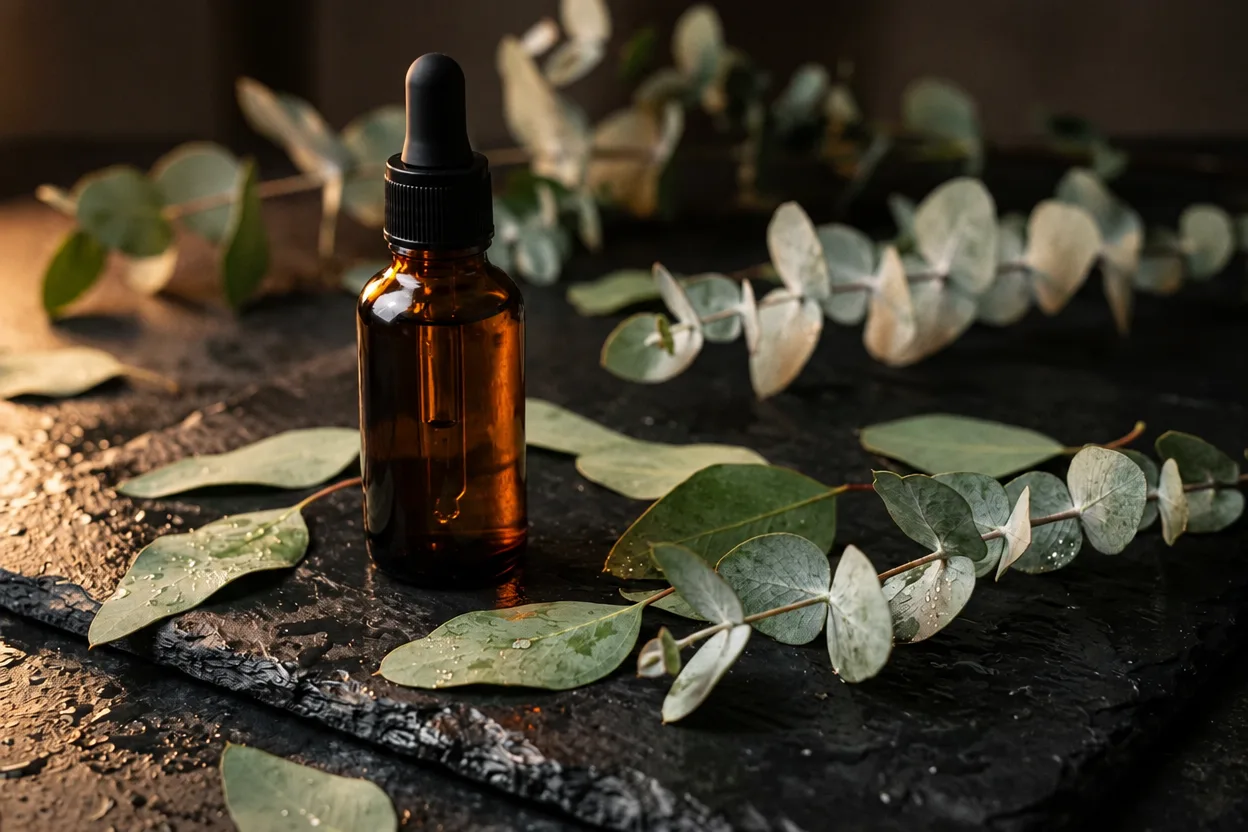

Our own run — drag the handle to compare.
Subscribe for more credits and more models.
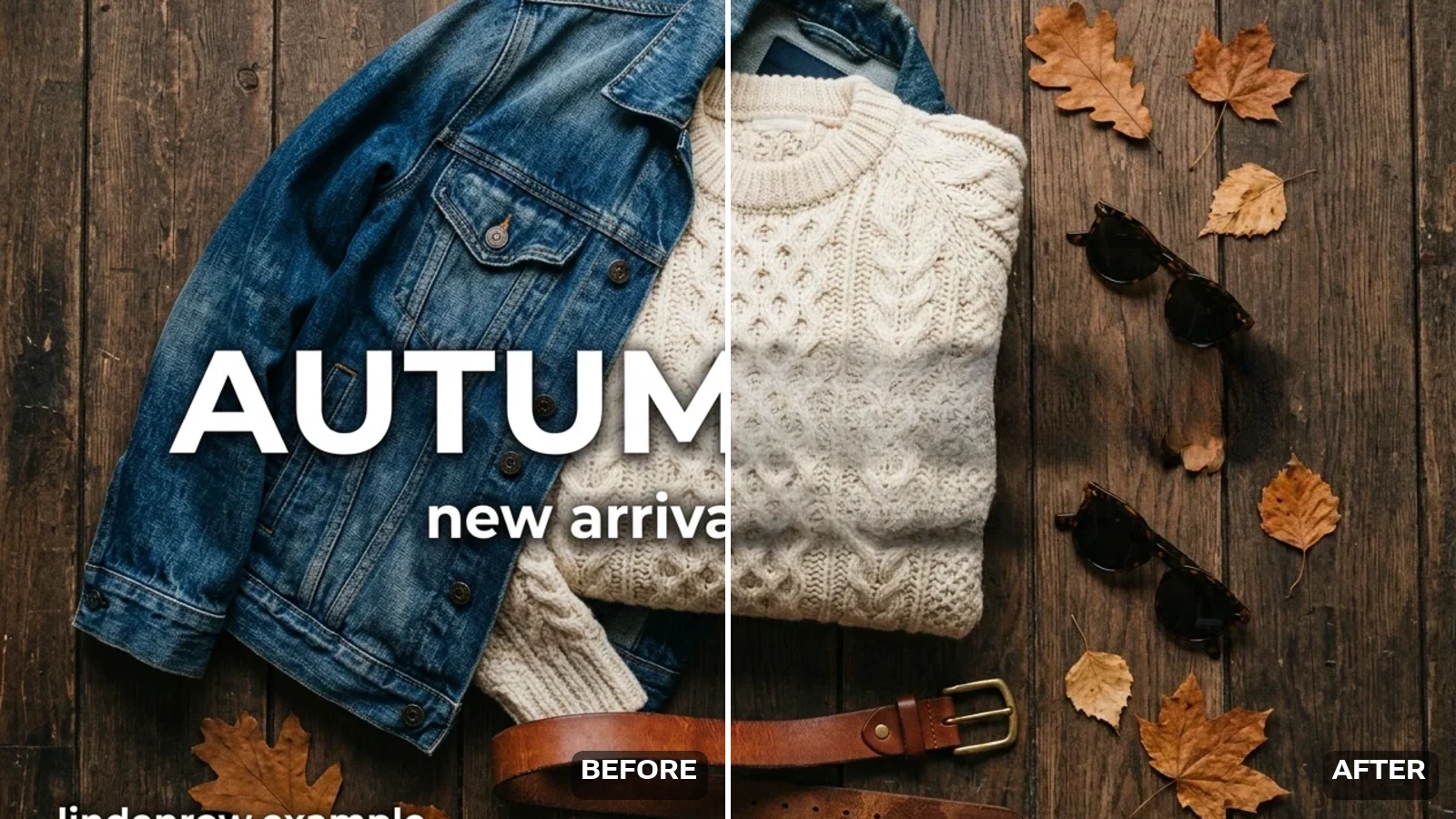
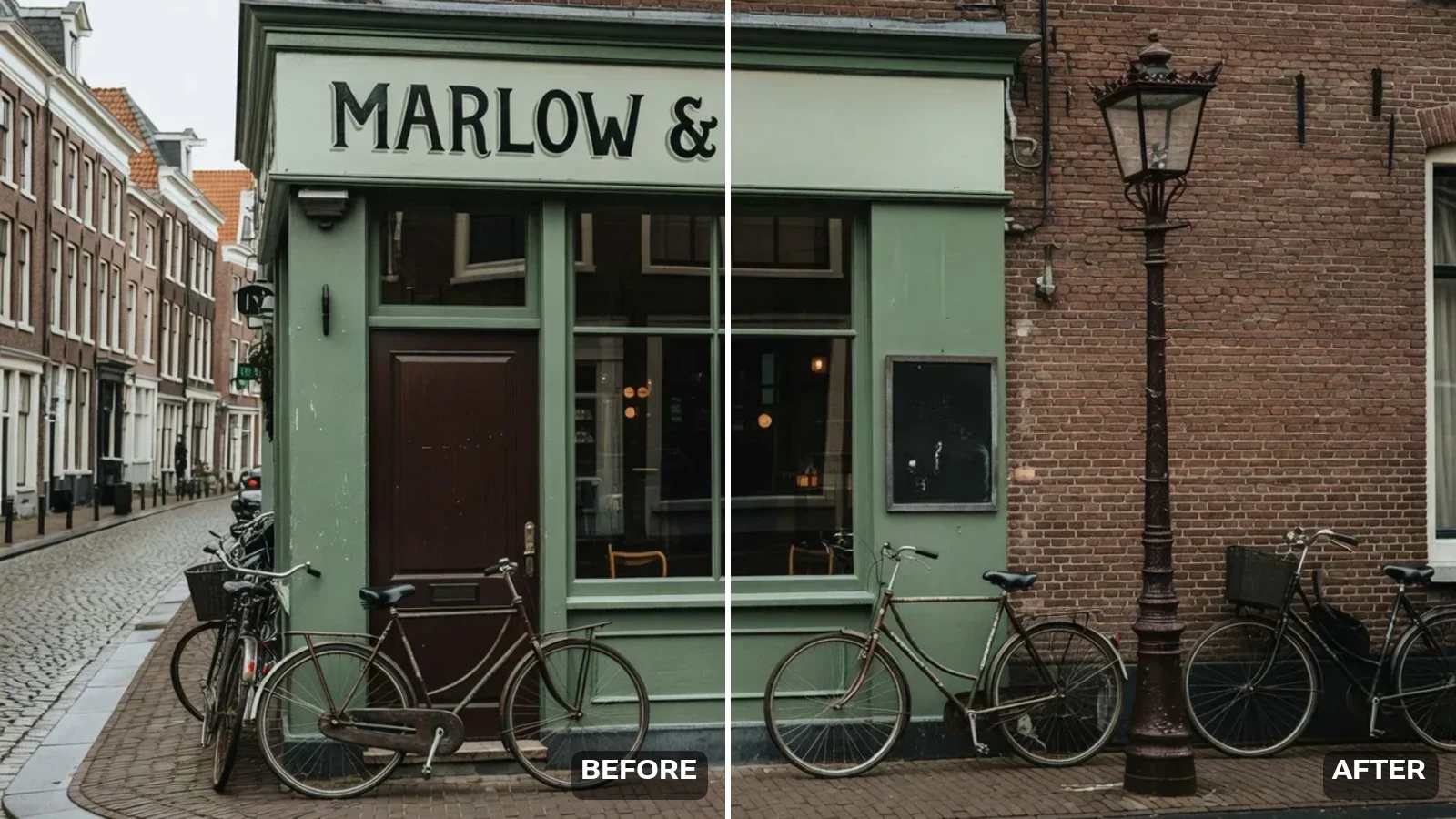
Every row is one of our own runs on this page’s pipeline — left of the seam is the picture as it arrived, right of it is the same run with the text erased. The last row is the limitation, not a win.
A travel shot carrying a poster-sized headline, a strapline and a site watermark. All three are gone on the right, and the ridge, cloud and trail behind them are rebuilt rather than blurred.
White type sitting straight on top of denim, knitwear and wood grain — the hardest case for a patch-style eraser. The seams, cable knit and leaves come back through where the letters were.
All-text mode means all text. The painted sign and the chalkboard are part of this picture, and it cleared them anyway — this is the limit, so use named mode when some of the text should stay.
Upload the picture above, choose whether to clear all the text or only the words you name, and generate. In about fifty seconds you get the picture back with the text gone and the background rebuilt underneath it — the subject, the framing and the light are held as they were. Following us on X and YouTube earns 20 free credits and a run here costs 13, so your first image is free; after that each run is billed. Drop in up to ten files and they are processed one after another.
Is it a big semi-transparent ownership watermark rather than overlaid text? Use the watermark remover instead
Four jobs account for almost everything people bring to a text remover.
A product shot you want to reuse without last season’s "50% OFF" burned across it.
The orange date in the corner of a scanned holiday photo — the single most common request in this cluster.
A screenshot or social card where the caption is baked in and you only want the picture.
A stray watermark URL on an image you own, before it goes into a deck or a print.
Step two is the one that decides whether you keep the text that is supposed to be there.
JPG, PNG or WebP up to 10MB. Add up to ten files to run them in sequence. The result comes back at about 1248×832 whatever you upload.
All text clears every word in the frame. Named text clears only the line you type, exactly as written.
Check the area the text used to cover, then download — or re-run in named mode if something you wanted was cleared.
Where this is reliable and where it is not, from our own runs. The honest dividing line is how the text got onto the picture, not how big it is.
| What is on the image | Expected result | What to do |
|---|---|---|
| Flat text laid over a photo (promo line, caption, URL) | Best case — the words go and the background is rebuilt cleanly | Nothing needed; all-text mode handles it |
| Camera date stamp in a corner | Reliable, including coloured stamps over busy detail | Nothing needed |
| Text you WANT to keep is also in frame (a sign, a book cover) | All-text mode clears that too — it does not know which words you meant | Switch to named mode and type only the line you want gone |
| Large semi-transparent diagonal watermark | Weak — parts of it survive and the area underneath can soften | Use the watermark remover, where you paint the exact area |
| Text over an extremely busy or high-contrast pattern | Usually fine, but the rebuilt patch can be slightly softer than its surroundings | Compare at full size before you print it |
| Text inside a video | Not supported — this tool takes still images only | No workaround here; see the FAQ |
Most complaints about text removers are not about the text. They are about what is left behind — a blurred rectangle, a smeared patch, a photo that now looks retouched by someone in a hurry. The searches say so out loud: people type "remove text from image without affecting background" because that is the part they do not trust.
So here is what actually runs, stated plainly, because the honest answer changed on 2026-09-20. This page used to run a purpose-built erase pipeline that rebuilt only the text pixels and passed everything else through untouched. That pipeline would only accept images up to about 1440 pixels tall, which ruled out very nearly every phone screenshot, so it was replaced with a general image model. A general image model re-renders the whole frame. What holds your photo together is the instruction we send with it — keep the subject, the framing, the colours, the light and every surface, change nothing but the words — and the fact that we picked the model that obeys it. In our own test a trail photo came back with a corner URL and a bright orange date stamp gone, and the valley, the cloud bank and the loose rock in the foreground all held. Held, not untouched: what you get back is a very close re-render at about 1248×832, not your original file with one patch repainted. If you need the second thing, a manual Content-Aware Fill in Photoshop is still the only way to get it.
The limit follows from the same design. Because the model decides what counts as text, it removes text it was never told to care about. Run all-text mode on a street photo and the shop sign goes with the promo overlay; run it on a still life and a book title on the spine can vanish. We show exactly that in the café pair above rather than hiding it. When some of the words belong in the picture, use the second mode and type the line you want removed — the tool then treats your string as the target and leaves the rest of the frame alone.
One more boundary worth stating plainly, because it is where a text remover is the wrong tool: a large, semi-transparent watermark stamped diagonally across the middle of a photo. We tested it. Parts of it survive and the area underneath can soften, because a mark like that overlaps everything rather than sitting in a tidy region. Those need the painted-mask route on the watermark remover, where you define the area and a generative model rebuilds it.
Three routes show up around this topic, and they trade off differently enough that it is worth being concrete.
Photoshop gives you total control. Content-Aware Fill on a lasso selection, or a clone-stamp pass for anything fiddly, will beat every automatic tool on a hard case, and it is the right answer when the text sits over irreplaceable detail. It also costs a subscription, and it costs you five to fifteen minutes per image plus the skill to do it well. If you have one image and it matters, that is still the best route.
Canva and the other design suites approach it from the other side: their text remover is a feature inside an editor you are already using for the layout. That is convenient when the image is already on a Canva canvas, and awkward when it is not — you are importing a photo into a design tool to perform one destructive edit and export it again.
This page is the narrow one. One upload, about fifty seconds, no editor to learn, and ten files at a time if you have a batch. It will not out-perform a careful Photoshop pass on a hard patch, and it does not pretend to. What it does is make the common case — flat text over a photo — take a minute instead of ten, and let you find out for free whether your particular image is a common case or a hard one. Two things Photoshop keeps that this does not: your original resolution, and pixel-for-pixel fidelity outside the text. The result here is a faithful re-render at about 1248×832, not your file with one patch repainted.
What happens to a file you upload here:
Picking a file only previews it on your device. Not one byte is stored until you sign in and click generate.
Uploads land in your private library, never a public gallery, and re-running the same photo stores nothing new.
Remove uploads and results from your library whenever you want.

As of October 2026, 100,000+ creators in 170+ countries and regions use Renoise AI, an AI video, image and audio platform, to generate 300,000+ images and videos with 30+ models.
Source: Renoise internal data, March–October 2026. Figures are rounded down and updated quarterly. Last updated
Real feedback from creators who use Renoise AI to make videos, images and ads.
Renoise is pretty easy to use, with a clean and smooth interface. The results from Seedance 2.5 also feel noticeably smoother in action sequences.
Renoise Ai is a good tool for making ai videos and photos. it puts several Ai models in one place, so you don't need to use many different apps.
あまりAIツールを使ったりしたことなかったですが、キャラクターの固定や動画を続いて作成できて使いやすいです。これからどんどん進んでいくアップデートが楽しみです。
Renoise has been a great platform for AI creativity. The tools are easy to use, the experience is smooth, and it makes creating content more enjoyable and efficient. I really appreciate the work the team is doing and look forward to seeing more improvements. Highly recommended!
What I like about Renoise AI compared to other platforms: Fast generation speed: Slow generation takes up way too much time, but Renoise AI is surprisingly about 30% faster. Intuitive and user-friendly UI: Cheaply made platforms have terrible UIs that make me not even want to log in, but Renoise is very clean and convenient. Remembers my previous settings: It helpfully remembers my last workspace settings. Some odd platforms force you to re-adjust everything every single time you generate a video, which is extremely frustrating. Overall preference: For all these reasons, Renoise AI is definitely my preferred platform. Thank you!
Renoise is your go to one stop all for ai creators. all view and use all models in one place, for any type of content you have your mind on!
I have a creat experience with the app. Consistent characters but also unique. THere were some issues with storyline continuity and non-typical humanoid characters.
Credits work across every tool — upscaling, image editing and the video models.
For your first AI creations
per month
≈ 150 GPT Image 2 Generations
≈ 60 Seedance 2.0 videos
The agent takes your idea all the way to a finished cut.
Starter and Standard: production work in Director Mode uses credits by usage. Advanced: free.
No queue. Start as many paid generations as you want at once.
Content generated with Renoise.ai may be used commercially, subject to our Terms of Service
For creating every week
per month
≈ 450 GPT Image 2 Generations
≈ 180 Seedance 2.0 videos
The agent takes your idea all the way to a finished cut.
Starter and Standard: production work in Director Mode uses credits by usage. Advanced: free.
No queue. Start as many paid generations as you want at once.
Renoise Agent runs on frontier models from leading AI labs to plan your shots, write prompts, and pick the right model for each one. Chatting with the Agent is free on every plan.
Content generated with Renoise.ai may be used commercially, subject to our Terms of Service
For professional-scale production
per month
≈ 1,750 GPT Image 2 Generations
≈ 700 Seedance 2.0 videos
The agent takes your idea all the way to a finished cut.
Starter and Standard: production work in Director Mode uses credits by usage. Advanced: free.
No queue. Start as many paid generations as you want at once.
Renoise Agent runs on frontier models from leading AI labs to plan your shots, write prompts, and pick the right model for each one. Chatting with the Agent is free on every plan.
Content generated with Renoise.ai may be used commercially, subject to our Terms of Service
For your first AI creations
per month, billed annually
Save $48compared to monthly
≈ 150 GPT Image 2 Generations
≈ 60 Seedance 2.0 videos
The agent takes your idea all the way to a finished cut.
Starter and Standard: production work in Director Mode uses credits by usage. Advanced: free.
No queue. Start as many paid generations as you want at once.
Content generated with Renoise.ai may be used commercially, subject to our Terms of Service
For creating every week
per month, billed annually
Save $216compared to monthly
≈ 450 GPT Image 2 Generations
≈ 180 Seedance 2.0 videos
The agent takes your idea all the way to a finished cut.
Starter and Standard: production work in Director Mode uses credits by usage. Advanced: free.
No queue. Start as many paid generations as you want at once.
Renoise Agent runs on frontier models from leading AI labs to plan your shots, write prompts, and pick the right model for each one. Chatting with the Agent is free on every plan.
Content generated with Renoise.ai may be used commercially, subject to our Terms of Service
For professional-scale production
per month, billed annually
Save $960compared to monthly
≈ 1,750 GPT Image 2 Generations
≈ 700 Seedance 2.0 videos
The agent takes your idea all the way to a finished cut.
Starter and Standard: production work in Director Mode uses credits by usage. Advanced: free.
No queue. Start as many paid generations as you want at once.
Renoise Agent runs on frontier models from leading AI labs to plan your shots, write prompts, and pick the right model for each one. Chatting with the Agent is free on every plan.
Content generated with Renoise.ai may be used commercially, subject to our Terms of Service
This page is the one-click route — upload and the model finds the words itself. For a painted mask, extending the frame or a stronger image model, open the Images surface.
Upload it to the tool at the top of this page, choose all-text or named-text, and generate. It takes about fifty seconds. You do not paint a mask or select the words — the model locates the text itself and rebuilds what was behind it from the surrounding image.
Following us on X and YouTube earns 20 free credits and one run here costs 13, so your first image is free. After that each run is billed per image. There is no free plan and no trial; the credits are a one-time grant you can spend however you like. This page used to give twenty free runs on a cheaper, purpose-built erase model. That model could only accept images up to about 1440 pixels tall, which ruled out almost every phone screenshot, so it was replaced on 2026-09-20 with one that takes any shape. The trade was one free run instead of twenty, and we would rather say that plainly than keep advertising twenty runs you could not use.
That is what the instruction is written to get. The area behind each word is reconstructed from what surrounds it rather than blanked, and the rest of the frame is held as it was. Held rather than untouched: a general image model re-renders the whole picture, so what comes back is a very close copy at about 1248×832, not your file with one patch repainted. Compare the result at full size before printing: on very busy patterns the rebuilt area can read slightly softer than its surroundings.
No. This tool takes still images only, and we would rather say so than let you upload a clip and find out. There is no video text-removal option on Renoise today.
All-text mode clears every piece of text in the frame, including text that belongs to the scene — signage, book covers, labels, packaging. It has no way to know which words you meant. Switch to the second mode and type the exact line you want removed, and everything else stays.
Small marks — a corner logo, a handle, a URL — usually come off cleanly. A large semi-transparent watermark stamped across the middle of the photo is a different problem: we tested it and parts of it survive. Use the watermark remover for those, where you paint the exact area and a generative model rebuilds it.
JPG, PNG and WebP up to 10MB. There is no pixel cap — a tall phone screenshot is fine. The result comes back at about 1248×832 whatever you send, so a large original returns smaller than it went in. You can add up to ten files at once; they run one after another and each is billed separately.
Only on images you own or are licensed to edit. Text and marks on someone else’s photo are often there to signal ownership, and stripping them can infringe the rights of the photographer or library that made it.